5 Ways to Run Claude Code Remotely, Compared
Cloud, Remote Control, Dispatch, Channels, and SSH all let you drive Claude Code from your phone — but they differ on where the code runs, whether your machine has to stay awake, and which skills survive. A decision guide plus a full comparison.
You are away from your desk and you want Claude Code to do something. There are five ways to make that happen, they are easy to confuse, and picking the wrong one usually means finding out an hour later that your laptop went to sleep and took the session with it.
This post compares all five, verified against the official docs and tested on a real machine as of Claude Code v2.1.210 (2026-07-14). The original framing comes from Academind's "5 ways of using Claude Code remotely" (2026-03-31); this moves fast enough that several details have since changed, so everything here reflects current behaviour rather than that snapshot.
Scope note: this covers ways to remotely operate the Claude Code that runs on your machine. Anthropic also ships Slack, Routines, and Scheduled tasks — those run entirely in the cloud rather than driving your local install, so they are out of scope here.
Which One Should I Use Right Now?
The table further down answers how they differ. This answers which one to pick. Read top to bottom and take the first row that matches your situation.
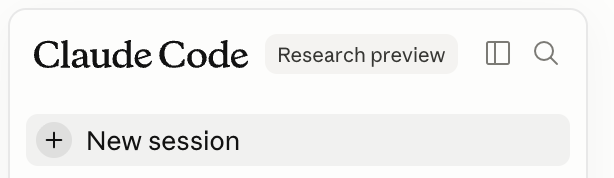 Cost: no access to your local files or user-level skills.
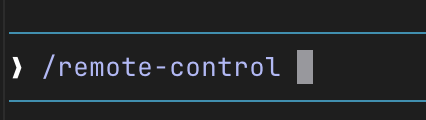 Turn on
 remoteControlAtStartup and every session connects itself.
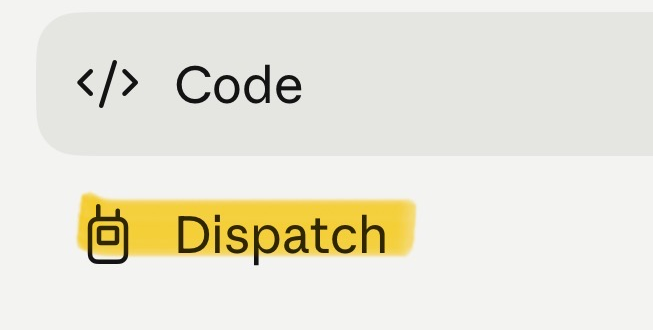 Needs the desktop app running; name the directory in every message.
The Full Comparison
| Feature | 1. Cloud (web) | 2. Remote Control | 3. Dispatch | 4. Channels | 5. SSH / Terminal |
|---|---|---|---|---|---|
| What it is | Officially Claude Code on the web. Runs your task on Anthropic’s servers. Your code no longer has to live on GitHub — claude --cloud packages up the local repo and uploads it. |
Start Claude Code in remote-control mode, scan a QR code with your phone, and the conversation routes back to your own machine. Can now auto-connect on every session. | Needs the Claude desktop app (one-time setup). Dispatch a task from your phone without having opened a terminal session first. | Wires a messaging channel (Telegram / Discord / iMessage) into Claude Code. One-time setup, then enable it when you start a session. | SSH into any machine running Claude Code (Mac or VPS), with Tmux to keep the session alive. The desktop app now has an official SSH entry point. |
| Best for | Overnight and parallel jobs. Works with your machine switched off. Sandboxed repo work. | Start at the desk, carry on from the sofa. Peeking at a running task. | Kicking off a one-off task from your phone. Desktop automation via Cowork. | An always-on assistant. Team channels. OpenClaw-style general helper. | Power users. VPS workflows. Full terminal control. Custom environments. |
| Status | Research preview | Research preview + Trusted Devices (beta, Team/Ent only) |
Stable | Research preview Introduced in v2.1.80 |
CLI: DIY Desktop: official |
| Plan required | Pro / Max / Team (Enterprise needs premium or a Chat+Code seat) | All plans; off by default on Team / Enterprise — an Owner has to enable it | Pro / Max only — not available on Team / Enterprise | All plans; Team / Ent admins must enable channelsEnabled |
None (it is your own machine) |
| Where code runs | Anthropic cloud VM | Your machine | Your machine | Your machine | Your machine / VPS |
| Machine must be awake? | ✗ No | ✓ Yes — the process has to stay alive | ✓ Yes (the desktop app blocks idle sleep) | ✓ Yes | ✓ Yes (a VPS is always on) |
| Setup before each use? | ✗ No — just start a task | ✗ No — set remoteControlAtStartup: true (v2.1.119+) and every session connects automatically. Also available via /config → “Enable Remote Control for all sessions”. |
✗ No — the desktop app handles it | ✓ Yes — start the session with --channels |
✗ No — SSH in and run it |
| Tied to a project? | ✓ Yes (one repo per session) | ✓ Yes (your local project directory) | ~ Not by default — every message has to name a directory (it comes from Cowork, not a coding-specific tool) | ✓ Yes | ✓ Yes |
| Phone access | ✓ Web / mobile app / CLI | ✓ Claude mobile app (QR scan) Push notifications supported (v2.1.110+) |
✓ Claude mobile app | ✓ Any messaging app (Telegram etc.) | ~ An SSH app such as Terminus |
| Local file access | ✗ No — the cloud VM holds a copy of the repo, not your disk | ✓ Full local access | ✓ Full local access | ✓ Full local access | ✓ Full access to the target machine |
| Skills / MCP | ~ Partial (improved) ✓ Repo-level .claude/skills/, agents/, commands/, .mcp.json✓ Skills enabled on claude.ai ✗ User-level ~/.claude/skills/✗ Servers added via claude mcp add |
✓ Everything | ✓ Everything | ✓ Everything The channel itself is a plugin and needs Bun |
✓ Everything on the target machine |
| Channel flexibility | Web / mobile app / CLI | Claude mobile app / web only | Claude mobile app only | Any connected channel (Telegram, Discord, iMessage) | Any SSH client |
| Session persistence | ✓ Keeps running in the cloud | ✗ Dies with the local process (close the terminal, lose the session) | ✓ The desktop app blocks sleep | ✓ Can run indefinitely | ✓ With Tmux, survives disconnects |
| Effect of sleep | ✓ Unaffected — runs in the cloud | ✗ Sleep disconnects it. Needs a stay-awake setup | ~ Blocks idle sleep, but a closed lid still needs extra config | ✗ Sleep breaks the channel connection; same config needed | ~ A VPS is unaffected; a local machine needs stay-awake + Tmux |
| Effect of lock screen | ✓ None | ✓ None — locking only turns off the display; background processes and networking keep going | ✓ None | ✓ None | ✓ None |
| Main limitation | The cloud VM has none of your local files, and cannot read user-level skills or claude mcp add servers. Upload requires: at least one commit, <100MB, no untracked files. An uploaded session cannot push back without GitHub authorization. |
The real constraint is that the local process must stay alive — close the terminal and the session is gone. Each interactive process carries one remote session (use server mode for more). | Not tied to a project, so every message must say which directory to work in. Pro / Max only. Unrelated to the local claude agents / --bg background system despite the similar name. |
Research preview, so behaviour may change. Needs one-time channel setup plus Bun. Team / Enterprise admins must enable it first. | There is no claude ssh command — on the CLI this is just standard SSH, not an Anthropic product. Closing the SSH app kills the session unless you use Tmux. Some networking knowledge required. |
The Thing That Actually Bites: Sleep
Four of the five modes run on your machine, which means all four die the same way — the machine goes to sleep and your remote session evaporates. This is the single most common way a remote setup fails, and it is worth understanding before you rely on one.
Two details are easy to miss on macOS:
Locking the screen is not sleeping. A lock screen only turns off the display. Background processes and networking keep running, so Claude Code, SSH, and remote sessions all survive it. You only need a password to get back in locally.
Power settings usually differ between battery and AC. It is common for a machine to be configured to never idle-sleep while plugged in, but to sleep after a minute or two on battery — which means an unplugged laptop cannot hold a remote connection at all, no matter what the desk-side behaviour suggests. Check both profiles with pmset -g custom, not just the current one.
Also worth knowing: a menu-bar stay-awake utility (Amphetamine, Caffeine, AwakeToggle, and friends) overrides your pmset configuration entirely while it is on. That is handy when you want it, and a fast way to drain a battery when you forget. If you use one, remember it is the thing keeping the machine up — not your power settings.
The practical rule: for anything except Cloud, your machine has to be plugged in, or held awake on purpose. Cloud is the only one of the five that does not care.
Picking One
Most people end up using two: Remote Control for continuing work that is already underway, and Cloud for anything that has to run while the laptop is shut. That pair covers the majority of real situations and requires almost no setup — one config flag and one command.
Reach for the others when you have a specific reason. Dispatch when you want to start something new from your phone with nothing prepared. Channels when you want a persistent assistant to message. SSH when you need real terminal control or the box lives in a datacenter anyway.
One thing worth setting up before you let any of these run unattended: a guard on what the agent can commit. An agent driving your repo from your phone can just as easily push a secret you never meant to expose — pre-commit and pre-push hooks are a simple safeguard against that.
And if you only remember one thing: the difference between these modes is not really about features. It is about where the code runs and what has to stay awake for it to keep running.
Related articles
Keep a Mac Awake With the Lid Closed (caffeinate Can't)
caffeinate can't do it — closing the lid sleeps the Mac regardless. Here's why, what pmset disablesleep actually changes, and a free one-click menu-bar toggle.
ChatGPT Desktop App vs Web App: What's Different in the New UI
Same account, two different products. The new ChatGPT desktop app leads with Work and Codex; the web app still leads with chat. Here's exactly what's different, which to use when, and how to split your workflow between them.
Claude Fable 5 in Claude Code: A Setup That Doesn't Burn Your Quota
Fable 5 is the smartest model you can run in Claude Code — and the one with the tightest weekly quota. How the Fable 5 limit works, how to check your usage, and the setup we landed on: Fable for judgment, lighter models for execution, and hard limits on context growth.