Keep a Mac Awake With the Lid Closed (caffeinate Can't)
caffeinate can't do it — closing the lid sleeps the Mac regardless. Here's why, what pmset disablesleep actually changes, and a free one-click menu-bar toggle.
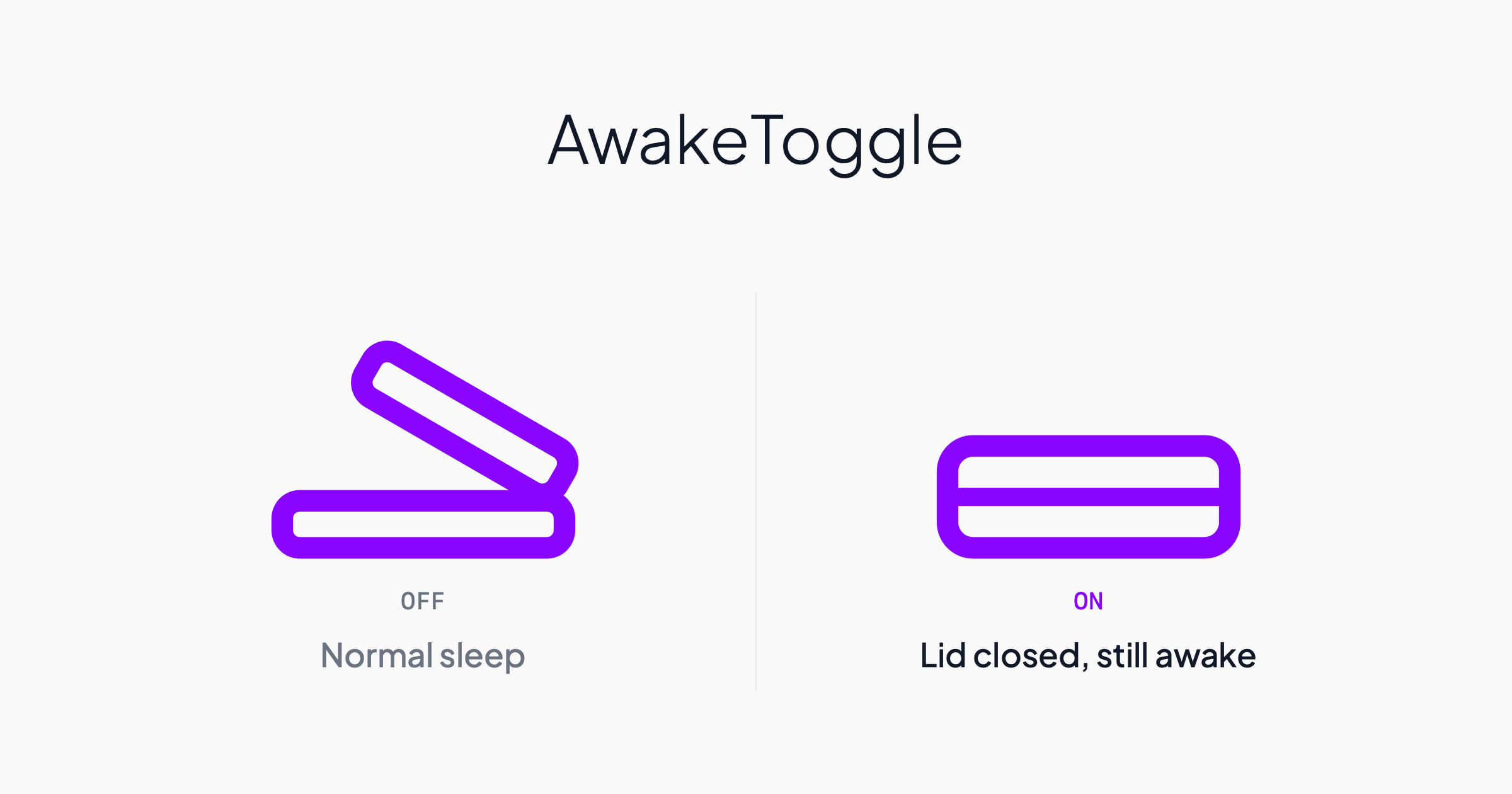
Short answer: caffeinate won't do it. It creates a power assertion, which holds off idle sleep — the screensaver-during-a-build case. Closing the lid is an explicit sleep request, and no assertion overrides it: run caffeinate -disu, shut the lid, and the Mac sleeps anyway. The setting that actually changes this is sudo pmset -a disablesleep 1 — and leaving it on permanently is a bad idea. Below: why that is, and a free menu-bar switch that flips it only when you need it.
One common reason to want this: if you run Claude Code or Codex on your Mac and drive it from your phone, the agent only works while the Mac is awake. Kick off a long refactor, close the lid to leave the house, and macOS sleeps: the run stops mid-task, the SSH connection drops, and you get back to a dead session.
That's the trade-off behind every "run it on your own machine" setup — of the five ways to run Claude Code remotely, the ones that keep your code on your laptop are exactly the ones that need your laptop awake. Cloud-hosted modes don't care about your lid; Remote Control, Dispatch and SSH do.
So the lid has to stay shut without the Mac sleeping. That's one command, and this is a switch for it.
Download and install
⬇️ Download AwakeToggle.zip — 52KB, macOS 12+, universal (Intel and Apple silicon). Free, no account, source on GitHub.
- Unzip and drag
AwakeToggle.appinto Applications - Double-click → blocked → click Done (not "Move to Trash")
- Open System Settings → Privacy & Security, scroll down to "AwakeToggle was blocked"
- Click Open Anyway → confirm once more
That block on step 2 says "Apple could not verify this app is free of malware." It's expected: the app isn't notarized, which is a statement about paperwork, not about the code. More on that below — and on macOS 15+ the old right-click → Open shortcut is gone, so the Privacy & Security route is the only one that works.
Using it
- Left-click the icon — toggle instantly
- Right-click the icon — open the menu
- Closed-laptop icon = staying awake · open-laptop icon = normal sleep
- UI follows your system language: English, 中文, or Français
Toggling shows the standard macOS admin password prompt — the system's own dialog. The app never sees your password, and it deliberately doesn't install a privileged helper or a passwordless-sudo rule to suppress the prompt. It doesn't phone home, collect anything, run a background service, or launch at login.
What it's doing, and why the obvious answers fail
The whole feature is one command:
sudo pmset -a disablesleep 1
If you're happy typing that, you don't need the app. But it's worth knowing why the usual suggestions don't work:
caffeinatedoesn't survive a lid close. It creates a power assertion, which holds off idle sleep — the screensaver-during-a-build case. A lid close is an explicit sleep request, and no assertion overrides it. Runcaffeinate -disu, shut the lid, and it sleeps anyway. That's whypmsetneedssudoandcaffeinatedoesn't.- Clamshell mode needs a desk. Apple's built-in version keeps the Mac awake with the lid shut, but only with power and an external display and an external keyboard or mouse. In a café with just the laptop, it doesn't apply.
- The raw command has no indicator. Nothing tells you it's on; you'd run
pmset -g | grep SleepDisabledto check. So you forget — and sleep stays disabled until you explicitly turn it off, including across reboots. A visible icon is the actual feature here.
⚠️ Heat and battery. A Mac still running inside a closed bag has nowhere to dump heat and will drain flat. Watch the icon and switch it off when you're done. This is the real risk of the tool, and the reason it's a menu-bar indicator rather than a fire-and-forget script.
Why it's unsigned
The warning is not a malware detection. macOS shows it for any app that hasn't been through Apple's notarization, safe or not. Notarization needs an Apple Developer account at $99/year, and I didn't buy one to give away a 52KB tool for free.
So don't take my word for it — the app is open source precisely because I'm asking you to run an unsigned binary:
- The whole app is one Swift file, ~240 lines. A two-minute read, not a code audit.
- The only privileged thing it does is the
pmsetline above. - Build it yourself and get the same app — no Xcode needed:
git clone https://github.com/machinefriendly/awaketoggle.git
cd awaketoggle && ./build.sh
A notarized app can still do whatever it likes; the certificate proves someone paid Apple, not that the code is good. 240 readable lines prove more than my $99 would.
Requests
It does one thing today. If you want scheduled windows, auto-off below a battery threshold, or launch at login — open an issue. I'd rather hear a real use case than guess. If enough people use it, I'll reconsider the certificate so the warning goes away.
Related articles
5 Ways to Run Claude Code Remotely, Compared
Cloud, Remote Control, Dispatch, Channels, and SSH all let you drive Claude Code from your phone — but they differ on where the code runs, whether your machine has to stay awake, and which skills survive. A decision guide plus a full comparison.
ChatGPT Desktop App vs Web App: What's Different in the New UI
Same account, two different products. The new ChatGPT desktop app leads with Work and Codex; the web app still leads with chat. Here's exactly what's different, which to use when, and how to split your workflow between them.
Claude Fable 5 in Claude Code: A Setup That Doesn't Burn Your Quota
Fable 5 is the smartest model you can run in Claude Code — and the one with the tightest weekly quota. How the Fable 5 limit works, how to check your usage, and the setup we landed on: Fable for judgment, lighter models for execution, and hard limits on context growth.